Company Holidays
You can add holidays that are specific to your company, such as a year-end shutdown or an extra day off.
Company holidays are treated just like public holidays. If someone applies for leave that includes a company holiday, that day won’t be deducted from their leave balance.
Company holidays also show on the company calendar and on employees’ leave calendars.
How to add a company holiday
Select “Settings -> Public & Company Holidays” from the menu at the top of the screen, then click the “Add Company Holiday” button.

You must enter the following:
- Holiday Description: For example, “Year-end shutdown”.
- Start date and End date: For a one-day holiday, select the same start and end date. The end date can be at most 60 days after the start date.
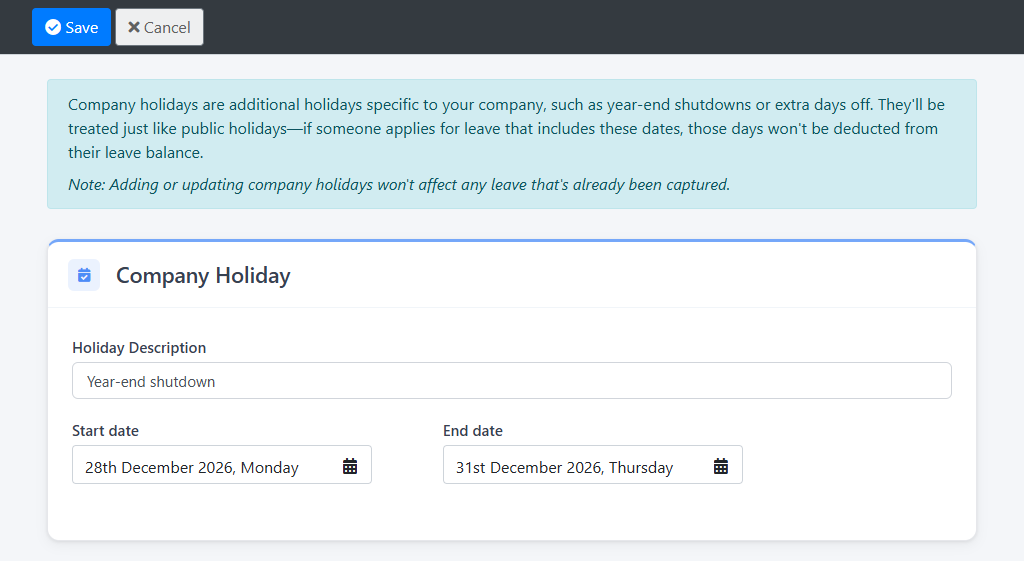
Click “Save” to add the holiday.
Company holidays can’t overlap. If the dates overlap with another company holiday you’ll need to change the dates or edit the other holiday instead.
Note: Adding or changing a company holiday won’t affect leave that has already been captured.
Editing or deleting a company holiday
Company holidays are listed with the public holidays on the “Settings -> Public & Company Holidays” screen.
Click the edit icon to change a company holiday, or the delete icon to remove it. You’ll be asked to confirm before it’s deleted.
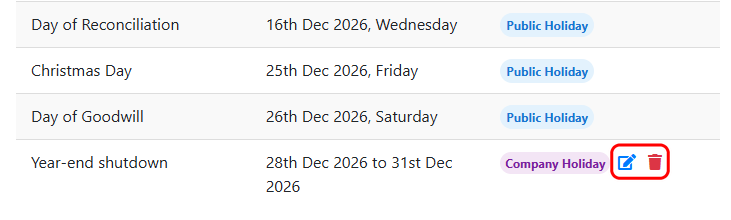
Deleting a company holiday won’t affect leave that has already been applied for over those dates.
This feature is only available in LeavePro Plus.