Viewing your team's leave
If you approve leave for other employees, you’ll see “My Team” in the menu at the top of the screen.
Your team is everyone whose leave you approve, either as their leave approver or as the approver for their department.
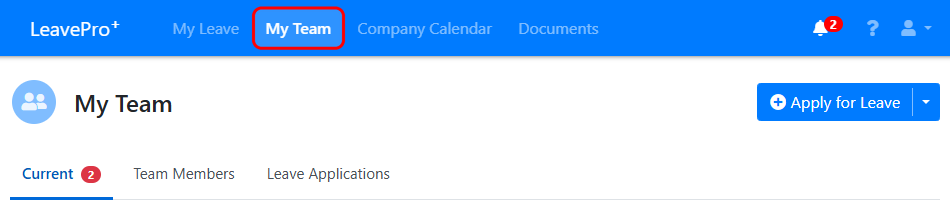
My Team has three tabs.
Current
The “Current” tab shows the leave applications waiting for your approval, and your team’s upcoming leave grouped by month.
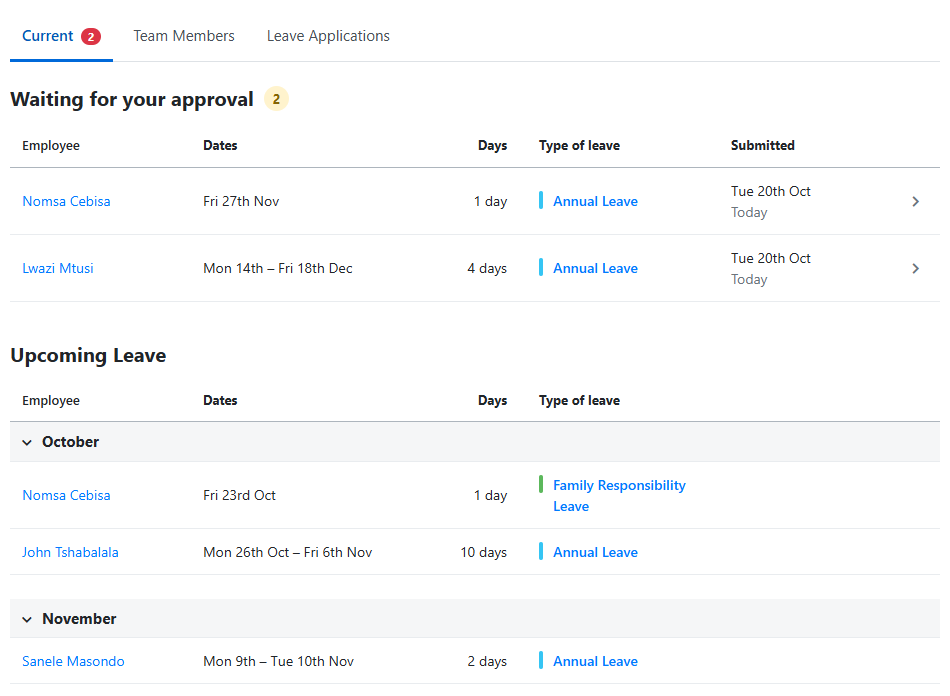
Click on an application to open it and approve or decline it (see How to approve and decline leave applications).
Team Members
The “Team Members” tab lists everyone in your team, and shows their annual leave available and the sick leave they have taken. Click on a team member to view more details. You can also search for someone, or click a column heading to sort by it.
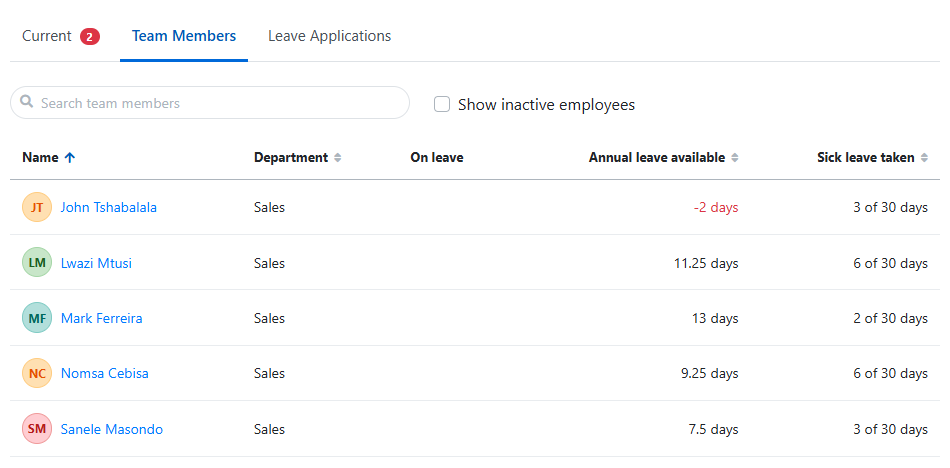
Tick “Show inactive employees” to see team members who have left, with their last day of employment and their final annual leave balance.
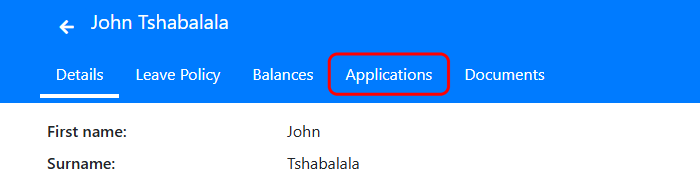
Click on a name to see the employee’s details, leave policy, balances and leave applications.
Leave Applications
The “Leave Applications” tab lists your team’s leave applications.
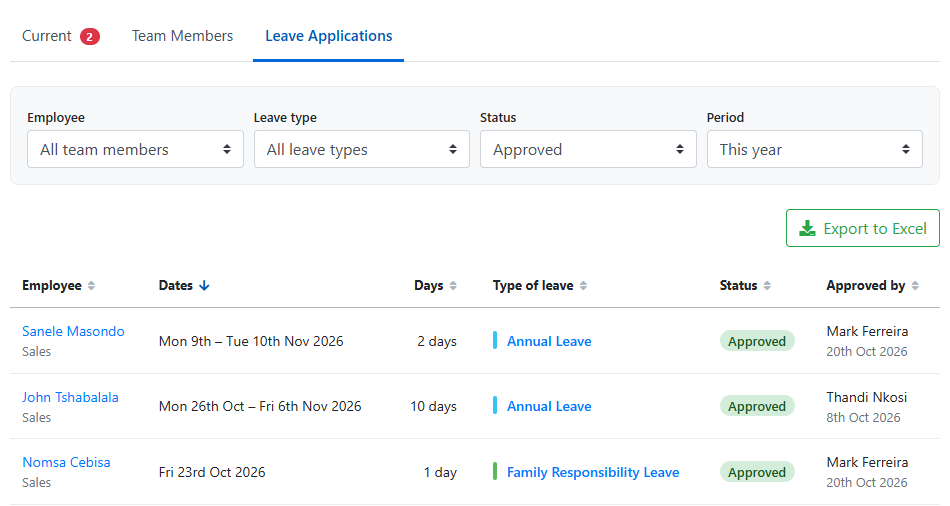
You can filter the applications by:
- Employee: One team member, or all of them.
- Leave type: One type of leave, or all of them.
- Status: Approved, waiting for approval, declined or cancelled, or all statuses.
- Period: This month, last month, this year, last year, or your own dates.
Click a column heading to sort by it, and click “Export to Excel” to download the list.
Other things you can do from My Team
- Click “Apply for Leave” to apply for leave for someone in your team (see How do I apply for leave on someone else’s behalf?).
- If your company uses overtime leave, click “Load Overtime Leave” to load the overtime your team has earned (see Loading overtime leave earned in lieu).