How to amend a leave application
Requesting an amendment to your leave
If your leave has been approved and you need to change it, for example its dates, you can ask for it to be amended.
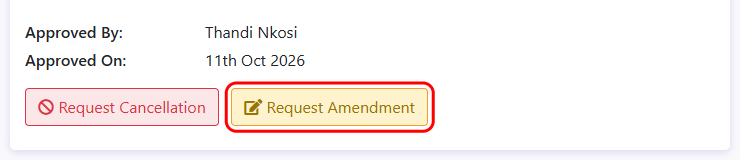
Select “My Leave” from the top menu, click the “Applications” tab and open the application (see My Leave Applications). Then click “Request Amendment”:
Enter what needs to change and click “Submit Amendment Request”:
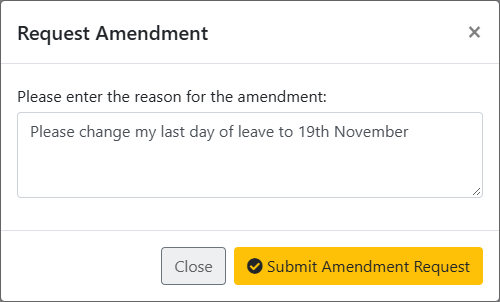
Your request will be sent for approval to your leave approver, or to your company’s administration contact if only administrators can amend approved leave. Your leave stays as it is until it has been amended.
You’ll be notified when your leave has been amended. If the request is declined, you’ll receive an email with the reason.
If your leave hasn’t been approved yet it can’t be amended. Instead, cancel it and apply again.
Amending a leave application
Administrators can amend leave applications that have been approved, declined or cancelled. There’s a setting to allow leave approvers to amend them too.
To amend an application, open the application to view it and then click “Amend Application”:

The existing application won’t be amended directly. Instead, a new application will be created which is identical to the existing application. You can make the necessary changes and submit it. Once submitted, the old application will be automatically cancelled.
You will need to enter a reason for amending the application when submitting the new application.

The employee will be notified that their leave application has been cancelled and a new application has been submitted.
Their annual leave balance will be automatically adjusted to reflect any changes.
Approving or declining an amendment request
When an employee requests an amendment, it’s marked “Amendment Request” in your list of leave applications waiting for your approval.
Open the application to see what the employee wants changed, then:
- Click “Amend Application” to make the changes, as described above.
- Click “Decline Amendment” if the leave should stay as it is. Enter a reason and click “Decline Amendment”. The employee will be emailed the reason.